

What a product declares
Products are currency-neutral. A price carries the currency of the plan or subscription it belongs to, so the same product can be sold in several currencies without being duplicated.
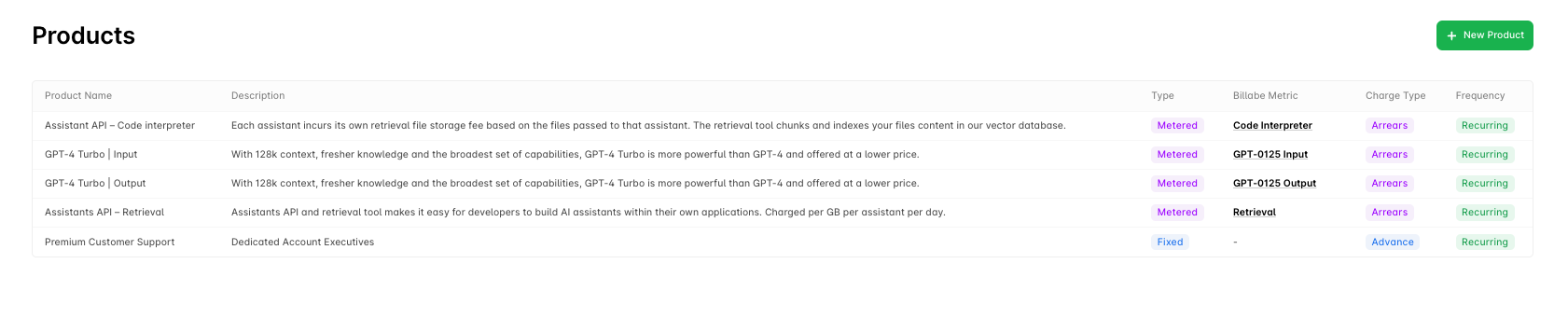
Create a product
In the dashboard
- Go to Products and click New Product
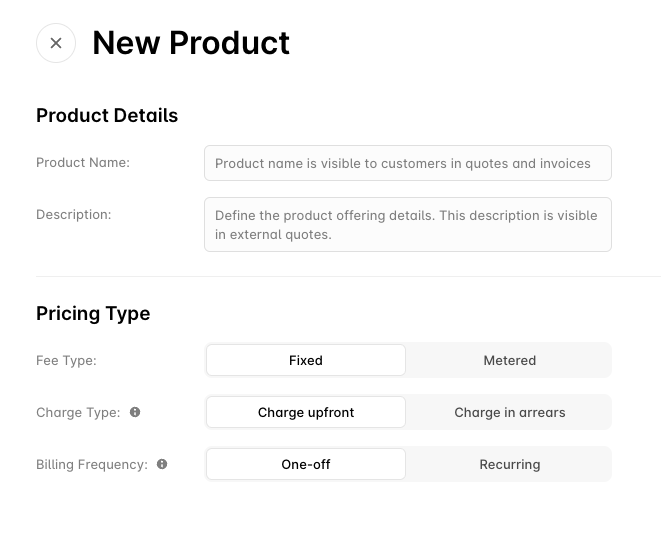
- Choose the fee type, billing frequency and payment terms
- Fill in the details below and click Save
Via the API
Use Create a product (POST /products).
Fee types
Fixed
A set quantity at a set rate each period: platform access, seat licences, support tiers. The quantity is fixed on the price (for example 25 seats), not measured.Metered
Charged on what the customer actually consumed: API requests, data transfer, compute hours, storage. A metered product needs at least one billable metric, and usage arrives throughPOST /events.
Metered products are billed in arrears because the amount is only known once the period has been metered. Prepaid commitments (the
prepaid_tiered and prepaid_fixed_tiered price types) are the exception: the committed amount is billed in advance and drawn down, with any overage billed in arrears.Payment terms
advance— the charge is issued at the start of the period. A $99 platform fee for January is invoiced on 1 January.arrears— the charge is issued at the end of the period. January’s usage is invoiced on 1 February.
billing_direction. Mid-period changes to advance charges are prorated; arrears charges are not, because their measurement window already bounds them.
Billing frequency
recurring— charged every billing period. The interval itself (monthly, quarterly, semi-annual, yearly) is set on the price, not the product.one-off— charged once and never again. Use it for setup fees, implementation, or training. A one-off price can be charged on the contract start date rather than the first billing date withcharge_on_contract_start.
Pricing models
A price turns a quantity into an amount. Alguna has eleven price types; the ones you will reach for most often are below. Pricing Models covers the full set with worked examples, and the pricing models reference has the request shape for each.Product details
Everything except
fee_type, billing_frequency, payment_terms and metric_ids can be changed later with Update a product (PATCH /products/{id}). The charging shape is fixed once the product exists; create a new product if it needs to change.
Common product patterns
SaaS platform
Infrastructure
Professional services
Managing products
Edit a product
In the dashboard, open the product and click Save after making changes; via the API, use Update a product.Delete a product
Delete a product (DELETE /products/{id}) soft-deletes it. A product that is on an active subscription cannot be deleted; remove it from those subscriptions first, or leave it in place and stop adding it to new plans.
Bundles
A bundle groups several priced products so they can be added to a plan, quote or subscription as one item. Create one with Create a product bundle (POST /bundles).
Troubleshooting
Metered product shows no usage — confirm the product’smetric_ids match the metric your events map to, that events are being accepted by POST /events (check the failed array in the response), and that event timestamps fall inside the billing period.
Pricing not calculating — check the tier table for gaps or overlaps between max_units and the next min_units, and that the price currency matches the customer’s currency.
Product cannot be deleted — it is on an active subscription. Delete is a soft-delete and is refused while the product is in use.
Next steps
Pricing Models
All eleven price types, with worked examples.
Plans
Package products and prices into a reusable offer.
Define Metrics
Measure usage for metered products.
How Alguna Works
Where products sit in the quote-to-revenue chain.