> ## Documentation Index
> Fetch the complete documentation index at: https://alguna.com/docs/llms.txt
> Use this file to discover all available pages before exploring further.
# Canceling Subscriptions
> Cancel subscriptions with full control over timing and behavior
# Canceling Subscriptions
Alguna provides flexible options for canceling subscriptions. Choose when the cancellation takes effect and how to handle remaining balances.
***
## Cancellation Options
| Option | Description | Use Case |
| ----------------- | ---------------------------------- | ------------------------------- |
| **Immediate** | Cancel now, end access immediately | Non-payment, policy violations |
| **End of Period** | Cancel at current period end | Customer-requested cancellation |
| **Specific Date** | Cancel on a future date | Contract end dates |
***
## Cancel via Dashboard
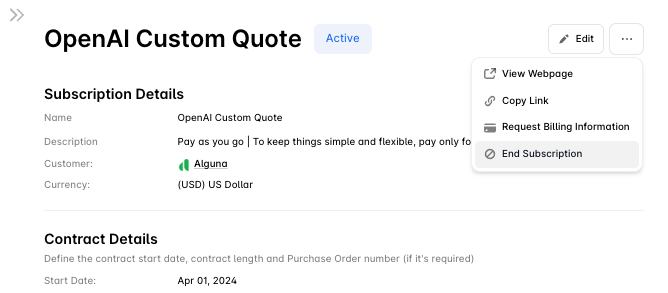
1. Navigate to the **Subscription Details** page for the subscription you want to cancel
2. Click the three-dot menu (`...`) in the top-right corner
3. Click **End Subscription** to initiate cancellation
 Select when the cancellation should take effect:
* **Immediately**: Ends the subscription right now
* **At Period End**: Ends at the current billing period end
* **On Specific Date**: Choose a future date
1. **Proration**: Choose whether to issue credit for unused time
2. **Final Invoice**: Generate a final invoice for outstanding charges
3. **Customer Notification**: Send cancellation confirmation email
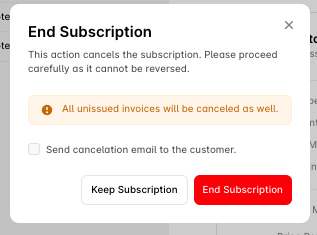
1. Review the confirmation warning about unissued invoices being canceled
2. Optionally select the checkbox to send a cancellation email
3. Click **End Subscription** to finalize
4. Click **Keep Subscription** to cancel and return without changes
Select when the cancellation should take effect:
* **Immediately**: Ends the subscription right now
* **At Period End**: Ends at the current billing period end
* **On Specific Date**: Choose a future date
1. **Proration**: Choose whether to issue credit for unused time
2. **Final Invoice**: Generate a final invoice for outstanding charges
3. **Customer Notification**: Send cancellation confirmation email
1. Review the confirmation warning about unissued invoices being canceled
2. Optionally select the checkbox to send a cancellation email
3. Click **End Subscription** to finalize
4. Click **Keep Subscription** to cancel and return without changes
 ***
## Proration and Credits
### When Canceling Immediately
If you cancel immediately, you can choose to issue credit for unused time:
**Example** (canceling \$99/month subscription on day 15 of 30):
```
Days remaining: 15
Daily rate: $99 / 30 = $3.30
Credit amount: 15 × $3.30 = $49.50
```
### When Canceling at Period End
No proration is needed—the customer has already paid for the full period and will retain access until the period ends.
***
## Final Invoice
When canceling, you can generate a final invoice that includes:
* Outstanding usage charges
* Pending recurring charges
* Credits for unused time (if prorating)
***
## Reactivating Canceled Subscriptions
### Before Cancellation Takes Effect
If the cancellation is scheduled for a future date:
1. Navigate to **Subscriptions → \[Subscription]**
2. The subscription shows "Scheduled for cancellation" status
3. Click **Cancel the Cancellation** or **Reactivate**
4. The subscription returns to active status
### After Cancellation
Once a subscription has been canceled, create a new subscription for the customer:
1. Navigate to **Subscriptions**
2. Click **Create Subscription**
3. Select the customer and configure the new subscription
***
## Tracking Cancellation Reasons
When canceling, record the reason for reporting and improvement:
| Reason | Description |
| ----------------------- | ------------------------------ |
| Customer requested | Customer asked to cancel |
| Non-payment | Payment failed repeatedly |
| Contract end | Contract term completed |
| Switching to competitor | Moving to another vendor |
| Not using product | Customer not using the service |
| Too expensive | Price concerns |
| Missing features | Product doesn't meet needs |
***
## Customer Self-Service
If you've enabled the customer portal, customers can cancel their own subscriptions:
1. Customer logs into their portal
2. Navigates to their subscription
3. Clicks **Cancel Subscription**
4. Selects cancellation date and provides reason
5. Confirms cancellation
Configure self-service cancellation settings in **Settings → Customer Portal**.
***
## Best Practices
Always ask for cancellation reasons to improve your product.
Send confirmation emails with cancellation details and dates.
Allow access until the paid period ends unless policy requires otherwise.
Track why customers cancel to identify patterns.
***
## Troubleshooting
### Cannot Cancel Subscription
1. Check subscription status (must be `active` or `pending`)
2. Verify you have permission to cancel
3. Check if subscription has pending changes that must be resolved first
### Proration Not Applied
1. Verify proration option was selected during cancellation
2. Check organization proration settings
3. Confirm cancellation type allows proration
### Customer Still Has Access
1. Check if cancellation is scheduled for future date
2. Verify your application's access revocation logic
***
## Next Steps
Learn about subscription management.
Make changes to active subscriptions.
***
## Proration and Credits
### When Canceling Immediately
If you cancel immediately, you can choose to issue credit for unused time:
**Example** (canceling \$99/month subscription on day 15 of 30):
```
Days remaining: 15
Daily rate: $99 / 30 = $3.30
Credit amount: 15 × $3.30 = $49.50
```
### When Canceling at Period End
No proration is needed—the customer has already paid for the full period and will retain access until the period ends.
***
## Final Invoice
When canceling, you can generate a final invoice that includes:
* Outstanding usage charges
* Pending recurring charges
* Credits for unused time (if prorating)
***
## Reactivating Canceled Subscriptions
### Before Cancellation Takes Effect
If the cancellation is scheduled for a future date:
1. Navigate to **Subscriptions → \[Subscription]**
2. The subscription shows "Scheduled for cancellation" status
3. Click **Cancel the Cancellation** or **Reactivate**
4. The subscription returns to active status
### After Cancellation
Once a subscription has been canceled, create a new subscription for the customer:
1. Navigate to **Subscriptions**
2. Click **Create Subscription**
3. Select the customer and configure the new subscription
***
## Tracking Cancellation Reasons
When canceling, record the reason for reporting and improvement:
| Reason | Description |
| ----------------------- | ------------------------------ |
| Customer requested | Customer asked to cancel |
| Non-payment | Payment failed repeatedly |
| Contract end | Contract term completed |
| Switching to competitor | Moving to another vendor |
| Not using product | Customer not using the service |
| Too expensive | Price concerns |
| Missing features | Product doesn't meet needs |
***
## Customer Self-Service
If you've enabled the customer portal, customers can cancel their own subscriptions:
1. Customer logs into their portal
2. Navigates to their subscription
3. Clicks **Cancel Subscription**
4. Selects cancellation date and provides reason
5. Confirms cancellation
Configure self-service cancellation settings in **Settings → Customer Portal**.
***
## Best Practices
Always ask for cancellation reasons to improve your product.
Send confirmation emails with cancellation details and dates.
Allow access until the paid period ends unless policy requires otherwise.
Track why customers cancel to identify patterns.
***
## Troubleshooting
### Cannot Cancel Subscription
1. Check subscription status (must be `active` or `pending`)
2. Verify you have permission to cancel
3. Check if subscription has pending changes that must be resolved first
### Proration Not Applied
1. Verify proration option was selected during cancellation
2. Check organization proration settings
3. Confirm cancellation type allows proration
### Customer Still Has Access
1. Check if cancellation is scheduled for future date
2. Verify your application's access revocation logic
***
## Next Steps
Learn about subscription management.
Make changes to active subscriptions.