> ## Documentation Index
> Fetch the complete documentation index at: https://alguna.com/docs/llms.txt
> Use this file to discover all available pages before exploring further.
# Create Quotes
> Learn how to create quotes
Alguna provides an end-to-end Quote-to-revenue workflow by having a Quote module natively integrated in the Billing Engine. This allows enterprise teams to create custom order forms, define pricing, add discounts and close deals in the most flexible way possible.
## Quote Statuses Lifecycle in Alguna
Allows you to create and edit quotes before sending to customers. **Quote editing is allowed.**
A quote is pending internal approval. **Quote editing is NOT allowed.**
A quote was rejected in the approval flow. **Quote editing is allowed.**
A quote is sent to a customer. **Quote editing is allowed.**
A quote has been accepted by the customer (or, if an internal signature is required, by both parties.) **Quote editing is NOT allowed.**
A quote has become an active plan/subscription. **Subscription editing rules apply.**
A quote has been canceled and will not activate. **Quote editing is NOT allowed.**
## Create a Quote
Quotes follow a very similar creation pattern to plans. Once you've configured your accounts and products, you can then start creating Quotes for your customers.
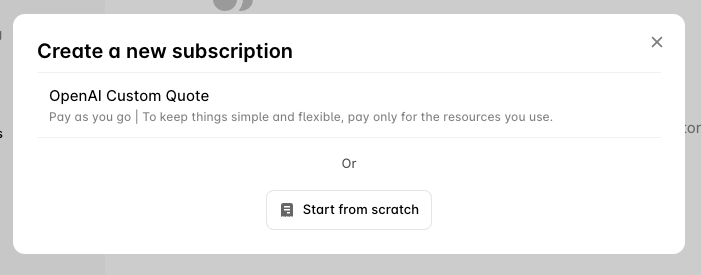
To create a Quote, navigate to the relevant customer account and click the **New Quote** button. If you have saved Quote templates, you can choose a pre-filled Quote or you can start building a Quote from scratch.
 ## Add Quote Details
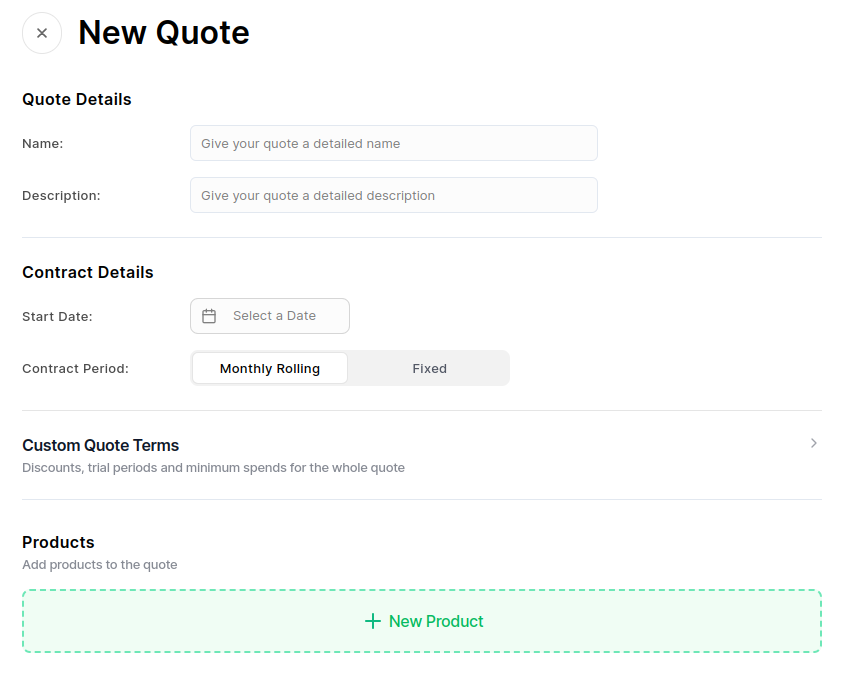
* **Name**: Enter a clear and descriptive name for the Quote. This will be visible to customers during checkout or in Quotes.
* **Description**: Provide a detailed description of the Quote. This should outline what the Quote offers and any key features customers need to know.
## Add Quote Details
* **Name**: Enter a clear and descriptive name for the Quote. This will be visible to customers during checkout or in Quotes.
* **Description**: Provide a detailed description of the Quote. This should outline what the Quote offers and any key features customers need to know.
 ### Custom Quote Terms
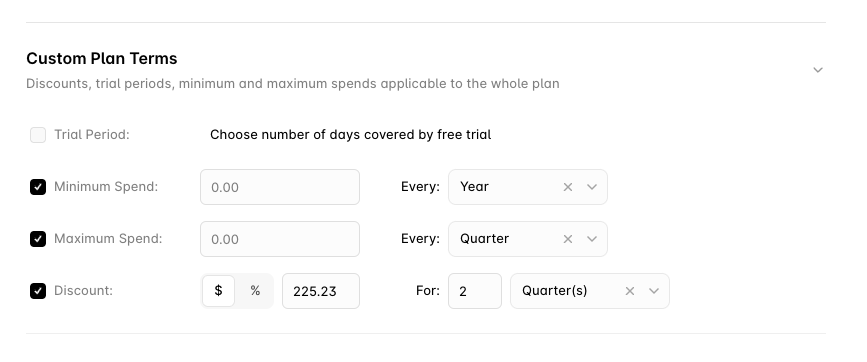
You can set specific terms that will apply to the entire Quote. These include:
* **Trial Period**: If offering a free trial, specify the number of days the trial will last. During the trial, the customer is not charged.
* **Minimum Spend**: Set a minimum spend that the customer must reach during each billing period, regardless of their usage. This ensures a base revenue for the Quote.
* **Maximum Spend**: Optionally, you can cap the maximum amount a customer is billed in each period, limiting the charges for a specific billing cycle.
* **Discount**: Apply a discount to the entire Quote. This can be a monetary amount or a percentage off for a specified time period.
These terms provide flexibility in how the Quote is structured, enabling you to offer promotional pricing, free trials, and controlled spending limits.
### Custom Quote Terms
You can set specific terms that will apply to the entire Quote. These include:
* **Trial Period**: If offering a free trial, specify the number of days the trial will last. During the trial, the customer is not charged.
* **Minimum Spend**: Set a minimum spend that the customer must reach during each billing period, regardless of their usage. This ensures a base revenue for the Quote.
* **Maximum Spend**: Optionally, you can cap the maximum amount a customer is billed in each period, limiting the charges for a specific billing cycle.
* **Discount**: Apply a discount to the entire Quote. This can be a monetary amount or a percentage off for a specified time period.
These terms provide flexibility in how the Quote is structured, enabling you to offer promotional pricing, free trials, and controlled spending limits.
 ## Add Products to the Quote
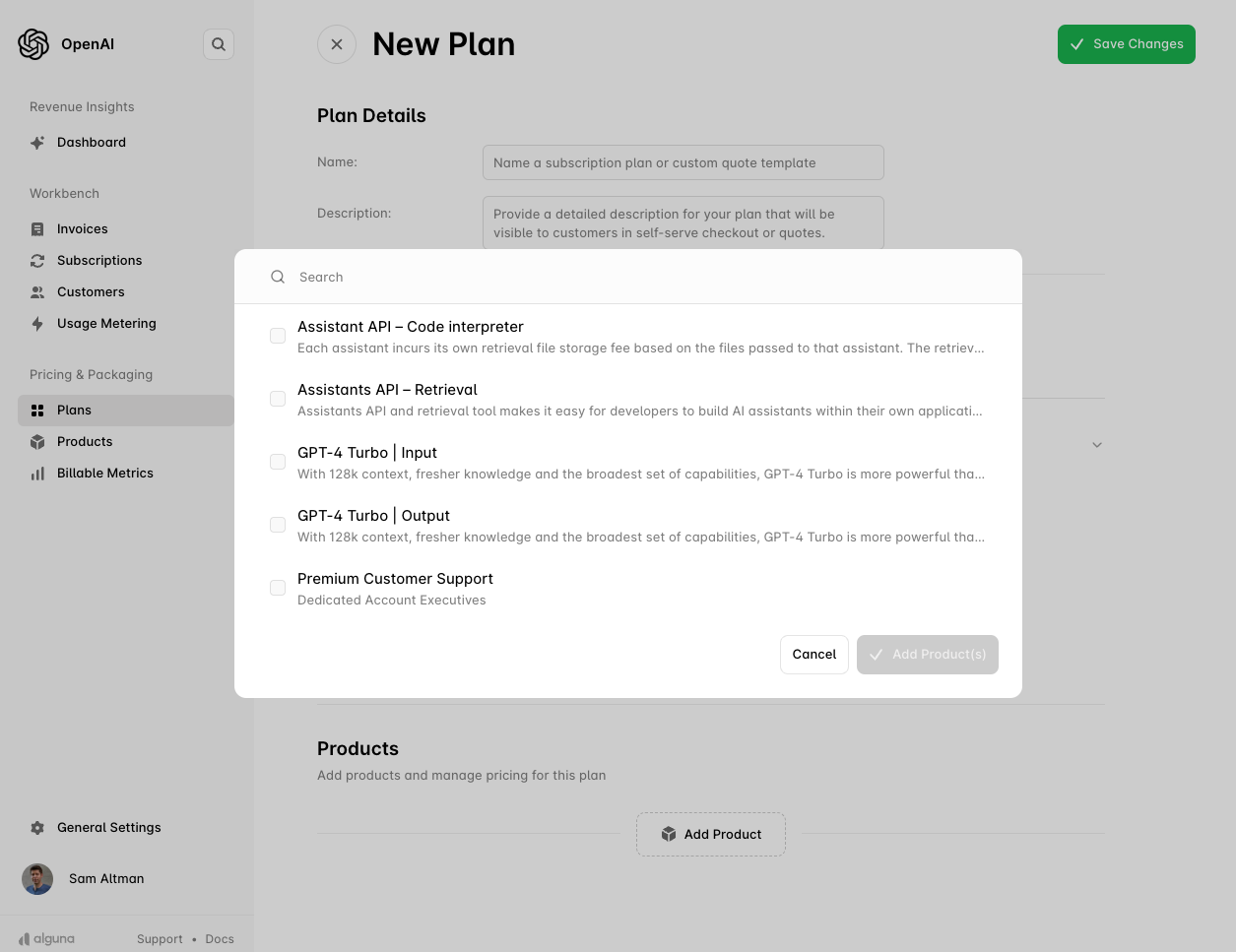
Once your Quote details are set, you can add products. To do this, click the **Add Product** button. A modal will appear where you can search for the products you want to include in the Quote. Select the products and click **Save** to add them to the Quote.
## Add Products to the Quote
Once your Quote details are set, you can add products. To do this, click the **Add Product** button. A modal will appear where you can search for the products you want to include in the Quote. Select the products and click **Save** to add them to the Quote.
 ### Fixed Products
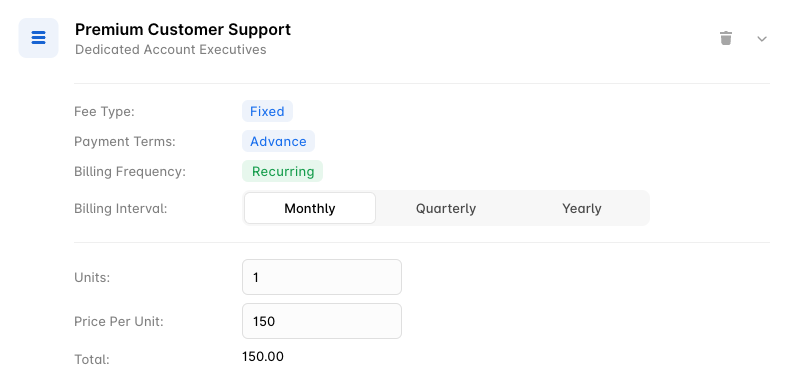
When adding a fixed product, you can:
* **Set the Fee**: Define the fixed amount to charge the customer for this product.
* **Billing Interval**: Choose how frequently the product will be billed. For example, you can select **Monthly**, **Quarterly**, or **Yearly** intervals, depending on the Quote's structure.
Fixed products are ideal for services or subscriptions that have a consistent, unchanging price.
### Fixed Products
When adding a fixed product, you can:
* **Set the Fee**: Define the fixed amount to charge the customer for this product.
* **Billing Interval**: Choose how frequently the product will be billed. For example, you can select **Monthly**, **Quarterly**, or **Yearly** intervals, depending on the Quote's structure.
Fixed products are ideal for services or subscriptions that have a consistent, unchanging price.
 ### Metered Products
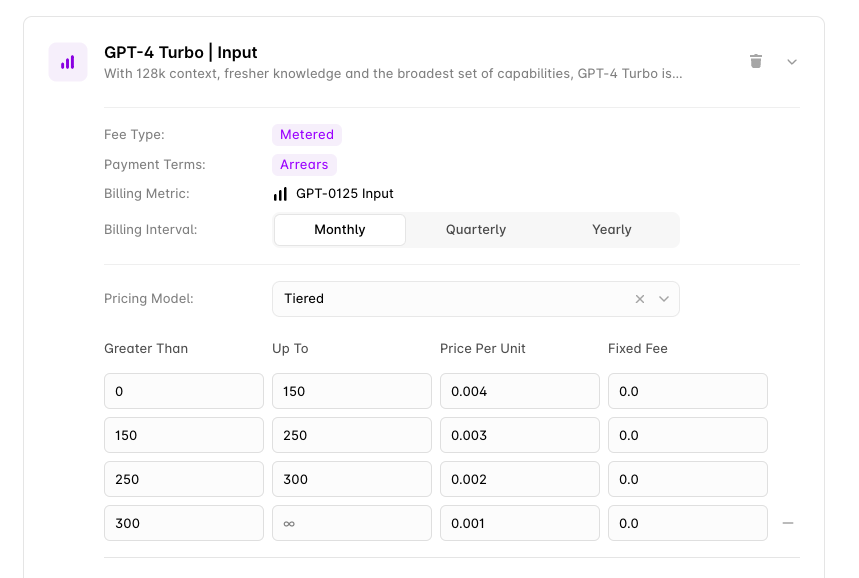
For metered products, you can set:
* **Billing Interval**: Choose how frequently the product will be billed. For example, you can select **Monthly**, **Quarterly**, or **Yearly** intervals, depending on the Quote's structure.
* **Pricing Model**: You can choose from a variety of pricing models to match your product’s billing structure.
You can review available [Pricing Models](/pricing/pricing-models).
### Metered Products
For metered products, you can set:
* **Billing Interval**: Choose how frequently the product will be billed. For example, you can select **Monthly**, **Quarterly**, or **Yearly** intervals, depending on the Quote's structure.
* **Pricing Model**: You can choose from a variety of pricing models to match your product’s billing structure.
You can review available [Pricing Models](/pricing/pricing-models).
 # Sending & Activating Quotes
Once you've added all the products you want to the Quote, you can [activate](/quotes/sign-quotes) it.
# Sending & Activating Quotes
Once you've added all the products you want to the Quote, you can [activate](/quotes/sign-quotes) it.