> ## Documentation Index
> Fetch the complete documentation index at: https://alguna.com/docs/llms.txt
> Use this file to discover all available pages before exploring further.
# BigQuery
Alguna supports the automatic ingestion of billable events via a direct integration with a BigQuery dataset. This allows you to track the usage of your application and bill your customers accordingly.
## Pre-requisites
This guide assumes that you have an existing dataset and table in your Google Cloud project, and the relevant permissions to create a service account in your Google Cloud project.
## Overview
### Permissions
Alguna leverages [Service Account Impersonation](https://cloud.google.com/docs/authentication/use-service-account-impersonation)
as a means to allow you to give access to resources in your Google Cloud project without sharing your own credentials. This is done as follows:
1. Create a service account in your Google Cloud project with the necessary permissions.
2. Give Alguna's service account the necessary permissions to impersonate the service account in your project.
### Process
Data is retrieved from your BigQuery dataset in a two stage process:
1. Alguna starts a BigQuery `EXPORT DATA` job to export and compress data to a Google Cloud Storage bucket for temporary staging.
2. Alguna fetches the data from the Google Cloud Storage bucket and ingests it as events.
## Setup Resources
This guide shows the setup steps in the GCP console, but you can also do this via IaC.
### Create a Service Account
1. In the Google Cloud Console for your project, navigate to `IAM & Admin` > `Service Accounts`.
2. Click on the `Create Service Account` button.
3. Give your service account a name, ID and description.
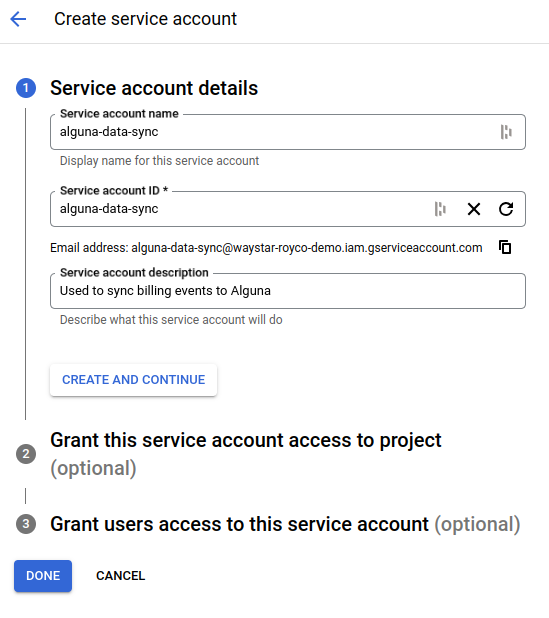 4. Grant the service account the Role `BigQuery Job User`.
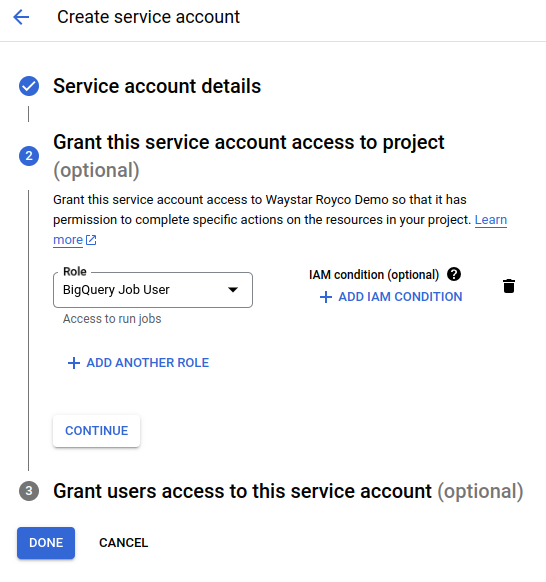 5. Make a note of the email address of the service account, as you will need this later.
It will be in the format:
```bash theme={null}
@.iam.gserviceaccount.com
```
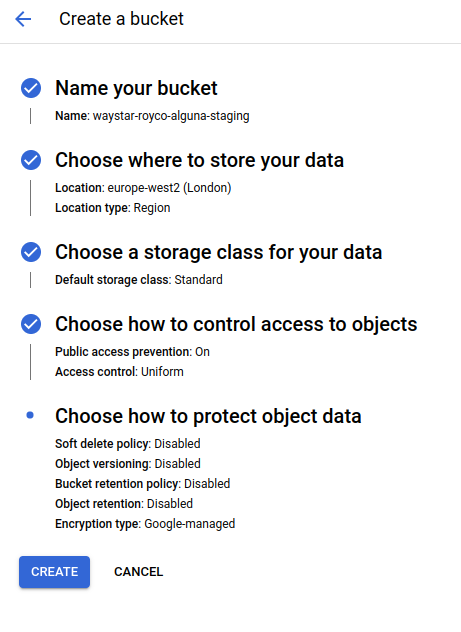
### Create a Cloud Storage bucket
Fetching data from BigQuery requires a Google Cloud Storage bucket to temporarily compress and store the data before it is ingested into Alguna.
1. In the Google Cloud Console for your project, navigate to `Cloud Storage` > `Buckets`.
2. Click on the `Create` button.
3. Give your bucket a name, and select a single region for the bucket. This must be the same region as your BigQuery dataset.
4. Set the `Storage class` to `Standard`.
5. Check `Enforce public access prevention on this bucket` and set the `Access control` to `Uniform`.
6. Keep the default settings for `Data Protection` and click `Create`.
5. Make a note of the email address of the service account, as you will need this later.
It will be in the format:
```bash theme={null}
@.iam.gserviceaccount.com
```
### Create a Cloud Storage bucket
Fetching data from BigQuery requires a Google Cloud Storage bucket to temporarily compress and store the data before it is ingested into Alguna.
1. In the Google Cloud Console for your project, navigate to `Cloud Storage` > `Buckets`.
2. Click on the `Create` button.
3. Give your bucket a name, and select a single region for the bucket. This must be the same region as your BigQuery dataset.
4. Set the `Storage class` to `Standard`.
5. Check `Enforce public access prevention on this bucket` and set the `Access control` to `Uniform`.
6. Keep the default settings for `Data Protection` and click `Create`.
 ## Setup Permissions
Using the email address of the service account you created earlier, grant the following permissions:
### Project
Grant the service account the `BigQuery Job User` role on the project, if you didn't already do this when creating the service account.
This allows the user to submit the `EXPORT DATA` job to BigQuery.
### Cloud Storage
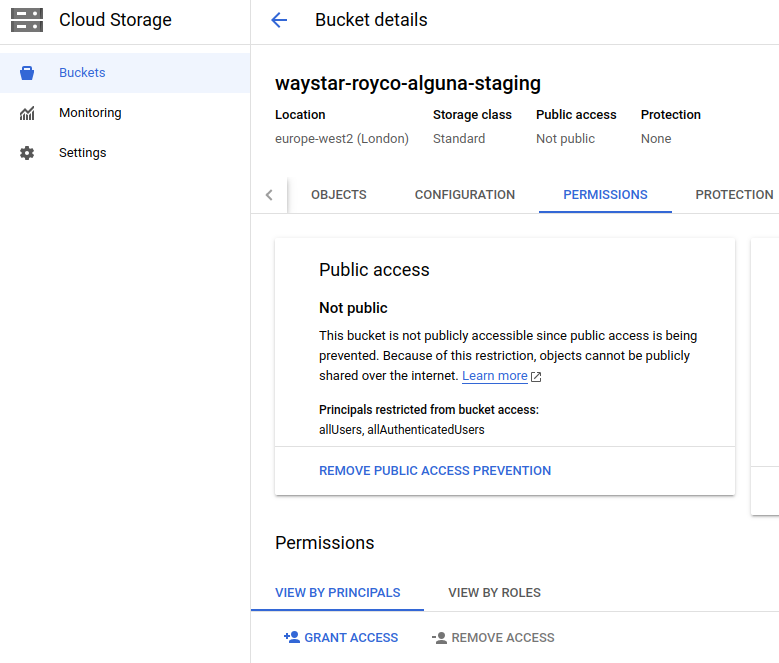
1. On the bucket you created earlier, navigate to the `Permissions` tab and click `Grant Access`.
2. Enter the principal email address of the service account you created earlier.
3. Select the role `Storage Object Admin`.
4. Click `Save`.
## Setup Permissions
Using the email address of the service account you created earlier, grant the following permissions:
### Project
Grant the service account the `BigQuery Job User` role on the project, if you didn't already do this when creating the service account.
This allows the user to submit the `EXPORT DATA` job to BigQuery.
### Cloud Storage
1. On the bucket you created earlier, navigate to the `Permissions` tab and click `Grant Access`.
2. Enter the principal email address of the service account you created earlier.
3. Select the role `Storage Object Admin`.
4. Click `Save`.
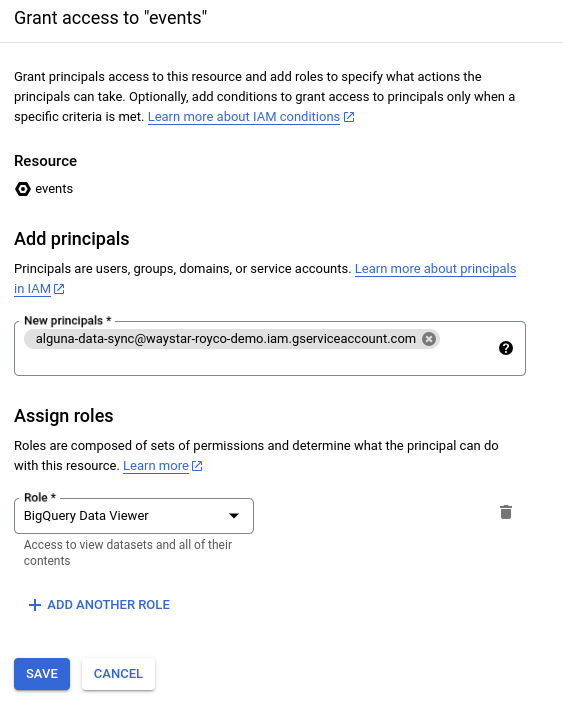
 ### BigQuery
1. In the Google Cloud Console for your project, navigate to `BigQuery`.
2. Click on the menu next to the table you want to export and select `Share` > `Manage Permissions`.
3. Click `Add Principal`.
4. Enter the principal email address of the service account you created earlier.
5. Select the role `BigQuery Data Viewer`.
6. Click `Save`.
### BigQuery
1. In the Google Cloud Console for your project, navigate to `BigQuery`.
2. Click on the menu next to the table you want to export and select `Share` > `Manage Permissions`.
3. Click `Add Principal`.
4. Enter the principal email address of the service account you created earlier.
5. Select the role `BigQuery Data Viewer`.
6. Click `Save`.
 ## Grant Alguna Access
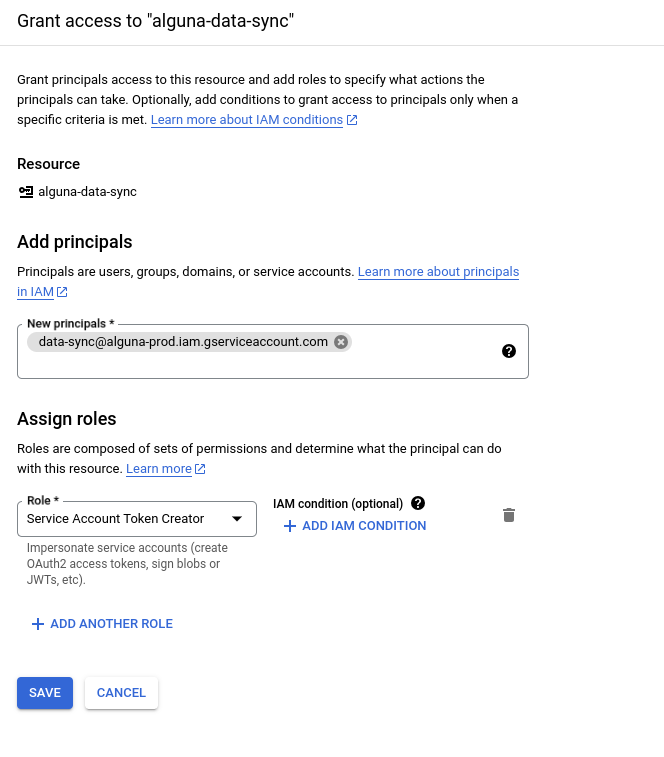
1. In the Google Cloud Console for your project, navigate to `IAM & Admin` > `Service Accounts`.
2. Click on the email address of the service account you created earlier.
3. Navigate to the `Permissions` tab.
4. Select `View By Principals` > `Grant Access`.
5. Enter the Alguna service account email address:
| Environment | Account |
| ----------- | ----------------------------------------------- |
| Production | `data-sync@alguna-prod.iam.gserviceaccount.com` |
6. Select the role `Service Account Token Creator`.
7. Click `Save`.
## Grant Alguna Access
1. In the Google Cloud Console for your project, navigate to `IAM & Admin` > `Service Accounts`.
2. Click on the email address of the service account you created earlier.
3. Navigate to the `Permissions` tab.
4. Select `View By Principals` > `Grant Access`.
5. Enter the Alguna service account email address:
| Environment | Account |
| ----------- | ----------------------------------------------- |
| Production | `data-sync@alguna-prod.iam.gserviceaccount.com` |
6. Select the role `Service Account Token Creator`.
7. Click `Save`.
 ## Share Setup Information
Once that's done, you can share the following information with Alguna:
* The email address of the service account you created.
* The name and region of the Google Cloud Storage bucket you created.
* The id of the BigQuery dataset and table you want to export in the format `..`.
* Your table schema.
## Share Setup Information
Once that's done, you can share the following information with Alguna:
* The email address of the service account you created.
* The name and region of the Google Cloud Storage bucket you created.
* The id of the BigQuery dataset and table you want to export in the format `..`.
* Your table schema.